Forex AI Trend EA Version 27 – Complete Installation, Setup & Update Guide
Learn how to download, install, and configure the latest Forex AI Trend EA (formerly Forex Never Losing Trading Robot). This step-by-step guide shows you exactly how to set it up for smooth and stable automated trading on MetaTrader 4 and MetaTrader 5.
What is Forex AI Trend EA Version 27?
Forex AI Trend EA is an advanced automated trading robot designed for the Forex market. The latest release, Version 27, is a major update from the previous Version 26. This Expert Advisor was previously known as the Forex Never Losing Trading Robot and has now been officially renamed to Forex AI Trend EA.
If you are already a user of Version 26 or the older Forex Never Losing Trading Robot, this update is completely free. You do not need to purchase anything again. Simply download the new version using your existing license key and follow the setup steps below.
Version 27 brings faster license validation, improved server communication through DLL, and seamless management of trades that were opened by the older version of the EA. The new version validates your license within just 2–3 seconds, allowing you to start trading quickly without long waiting times.
How to Download Forex AI Trend EA Version 27
Downloading the latest version of Forex AI Trend EA is simple and only takes a few minutes. Follow these exact steps to get the EA file:
Go to the Official Download Page
Visit the official website at eatrades.com/download-ea and click on the button that says “Download Your Purchased EA”.
Enter Your License Key and Captcha
You will be taken to a secure page where you need to insert your license key and complete the captcha code. This step verifies that you are a genuine user of the EA.
Download the EA File
Once you click the download button, the Forex AI Trend EA Version 27 file will be ready. Save it to your computer so you can install it on MetaTrader 4 or MetaTrader 5.
How to Install Forex AI Trend EA on MetaTrader 4 and MetaTrader 5
After downloading the EA, you need to install it correctly so that it appears in your MetaTrader terminal and works without errors. The process is the same for both MetaTrader 4 and MetaTrader 5.
Copy the EA File to MetaTrader
Copy the downloaded Expert Advisor file into the correct folder of your MetaTrader installation. For MetaTrader 4 this is usually the MQL4/Experts folder, and for MetaTrader 5 it is the MQL5/Experts folder.
Restart Your MetaTrader Terminal
Close and reopen your MetaTrader 4 or MetaTrader 5 terminal. After restarting, the Forex AI Trend EA should appear in the Navigator window under the Expert Advisors section.
Attach the EA and Allow DLL Imports
Double-click the EA or drag it onto your preferred chart. When the settings window opens, you must allow DLL imports. Version 27 uses DLL to connect to the official server, validate your license, and receive important instructions that keep your trading smooth and stable.
Enable Algo Trading
Go to the Common tab in the same settings window and make sure the option “Allow Algo Trading” is enabled. Without this option activated, the EA will not place any trades on your account.
Critical Step: Allowing DLL is mandatory. Without DLL permission, Forex AI Trend EA Version 27 will not be able to validate your license or communicate with the server, and the Expert Advisor will not work at all.
How to Create and Load the Correct Set File for Forex AI Trend EA
One of the biggest advantages of Forex AI Trend EA is that you do not need to manually adjust dozens of input parameters. Instead, you can generate a personalized set file that matches your account balance, preferred risk level, and leverage. This is the recommended method to achieve results similar to those shown in the official videos.
Why You Should Use the Official Set File Generator
Manually changing parameters can easily lead to incorrect risk settings or unstable performance. The official set file system automatically calculates the optimal values based on your real account conditions. Using the generated set file is the easiest and safest way to configure the EA correctly.
Open the Official Set File System
Go to the AI Trend EA Set File System and select the option for AI Trend EA.
Unlock the Configurator with Your License
Enter your license key and the captcha code, then click “Unlock Configurator”. This step confirms that you are a real licensed user of the EA.
Enter Your Account Balance and Preferences
Type your current account balance (for example, 1500). Then select the number of trading pairs you want the EA to trade.
Recommended Risk vs Aggressive Risk Profile
The set file generator gives you two main risk options:
- Recommended Risk: Maximum of 3 trading pairs. This is the safer and most commonly used setting for the majority of traders.
- Aggressive Risk: You can choose 4, 5, or a maximum of 6 trading pairs. Selecting more than 6 pairs will usually generate an error because the account balance is not sufficient to handle higher risk.
Important Leverage Requirement: Forex AI Trend EA requires a minimum leverage of 1:400. Most brokers offer 1:500, which works perfectly with the EA. If your account leverage is lower than 1:400, the Expert Advisor will not function correctly.
Download and Load Your Set File into MetaTrader
After filling in your account balance, number of pairs, risk profile, and leverage, click the “Download Set File” button. Once the file is ready, return to your MetaTrader terminal, open the EA settings window, click the “Load” button, locate the set file you just created, and load it.
Before clicking OK, make sure you paste your license key into the designated input field. This is how the EA validates your license and starts working.
What If You Already Have Open Trades from the Old Version?
Many traders ask what they should do with existing open positions when updating from Version 26 (or the older Forex Never Losing Trading Robot) to Version 27. The answer is simple: you do not need to close any trades.
Whether you currently have 1, 10, or even 100 open trades from the previous version, the new Forex AI Trend EA Version 27 is fully capable of recognizing and managing them. Here is what you need to do:
- Restart your MetaTrader terminal
- Create and load your new set file as explained above
- Attach Version 27 and enter your license key
The new version will automatically take over management of all existing trades. No manual closing or intervention is required.
Official Resources, Live Results and Verified Performance
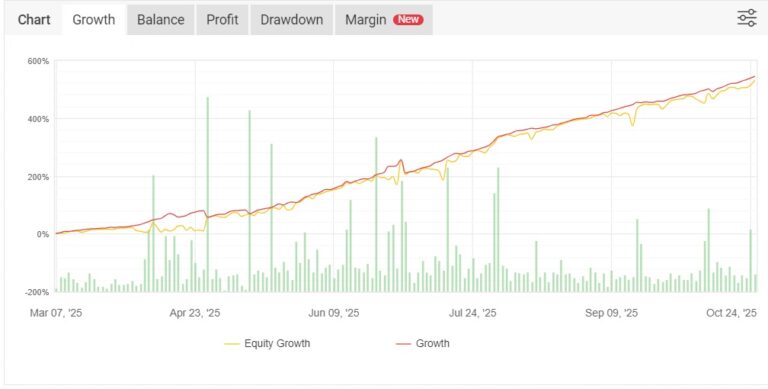
Below you will find all the important official links related to Forex AI Trend EA Version 27. These pages contain the latest product information, live trading results, and independently verified performance data.
Prefer to learn this complete guide by watching a video?
▶ Watch the Full Video Installation GuideStart Using Forex AI Trend EA Version 27 Today
Download the latest version, generate your personalized set file according to your account balance and risk preference, and let the Expert Advisor handle the trading with improved speed and stability.
Download AI Trend EA Version 27