Fixed: Hedge Scalper EA Stuck on “Validating License” (MT4/MT5 Solution)
A common problem reported by first time users of Hedge Scalper EA, AI Trend EA, and Correlation EA is that the EA remains stuck on “Validating License” after being installed on a chart.
In most cases, the problem is very simple: the database URL has not been added to your MT4 or MT5 terminal.
Why Does This Happen?
Your EA needs to connect to our licensing server to verify your license key. But you haven’t allowed the EA to connect to our database server.
If you install the EA without adding our database URL, it cannot contact the server and therefore cannot validate your license.
How to Fix It
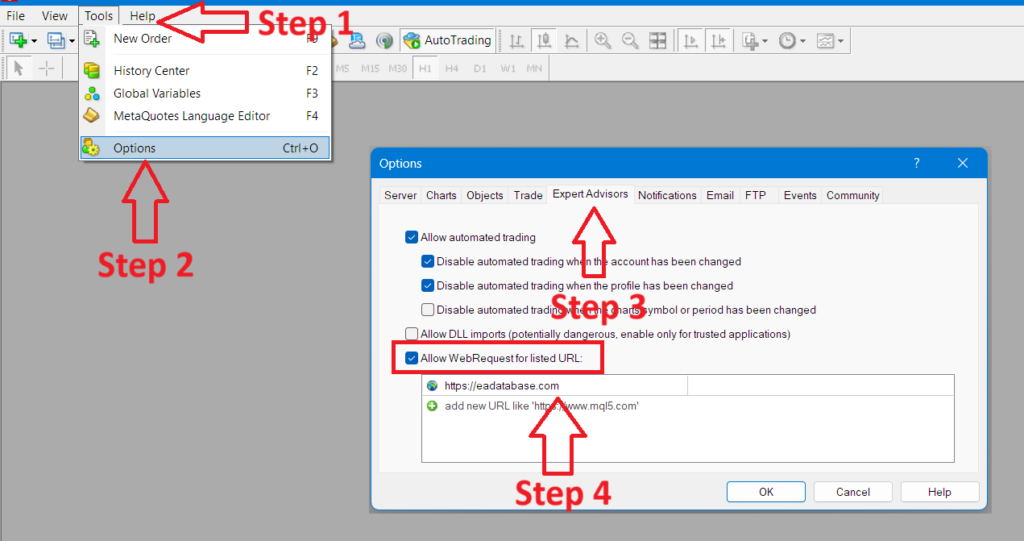
In MT4 or MT5, go to Tools → Options → Expert Advisors, enable “Allow WebRequest for listed URL”, and add https://eadatabase.com/
After adding the URL, click OK, then install the EA on your chart and enter your valid license key.
When everything is configured correctly, the EA should normally validate and start within about 30 seconds.
What if Already Installed the EA?
If your EA is already installed and showing “Validating License”, you don’t need to reinstall it.
Simply add the URL to your MT4 or MT5 terminal as explained above. The EA can then connect to the licensing server and validate your license.
If the EA was already installed before the URL was added, it may take approximately 4–6 hours to reconnect and start automatically.
What If You Never Add the URL?
If you do not add https://eadatabase.com, the EA cannot connect to our licensing server. It will remain stuck on “Validating License” and will not start trading.
So, if you see this message, check the WebRequest URL first before assuming that there is a problem with your license key.
Should You Remove the URL After Validation?
No. Keep the URL in your terminal.
The EA may need to connect to the licensing server again after the initial license validation. If you remove the URL, the EA may stop working after some time because it can no longer communicate with the server.
How to Avoid this Issue in Future?
Always add the database URL before installing your EA:
Add the URL → Install the EA → Enter your license key → Wait for validation → Keep the URL.
This simple step will prevent the most common “Validating License” problem with Hedge Scalper EA and our other licensed EAs.
If you have followed these steps and the EA is still not validating, contact EA Trades support with your EA name and a screenshot of the “Validating License” message.