Understand Every Hedge Scalper EA V27 Setting
Explore what each input does, how the settings work together, and what to consider before changing your EA configuration — from lot sizing and grid spacing to drawdown control, hedging and account protection.
This guide follows the V27 input subsequent 27.x updates. It does not apply to version 26, 25, 24, or older legacy releases.
Video Walkthrough
Prefer watching instead of reading? Follow the complete video guide explaining Hedge Scalper EA V27 inputs.
Before You Change Any Hedge Scalper EA V27 Inputs
Confirm the version, account conditions and configuration first.
Generator Parameters & Requirements
- Account balance: Select or adjust your balance (e.g., $5,000).
- Number of pairs: Choose how many currency pairs to trade (e.g., 5 pairs).
- Risk profile: Select Normal, Safe, or Aggressive mode (recommended setting is between Aggressive and Normal).
- Leverage requirement: Requires 1:400, 1:500, or higher. Lower leverages like 1:300, 1:200, or 1:100 are not supported; accounts should be changed to use this EA properly.
Initial Information and License Settings
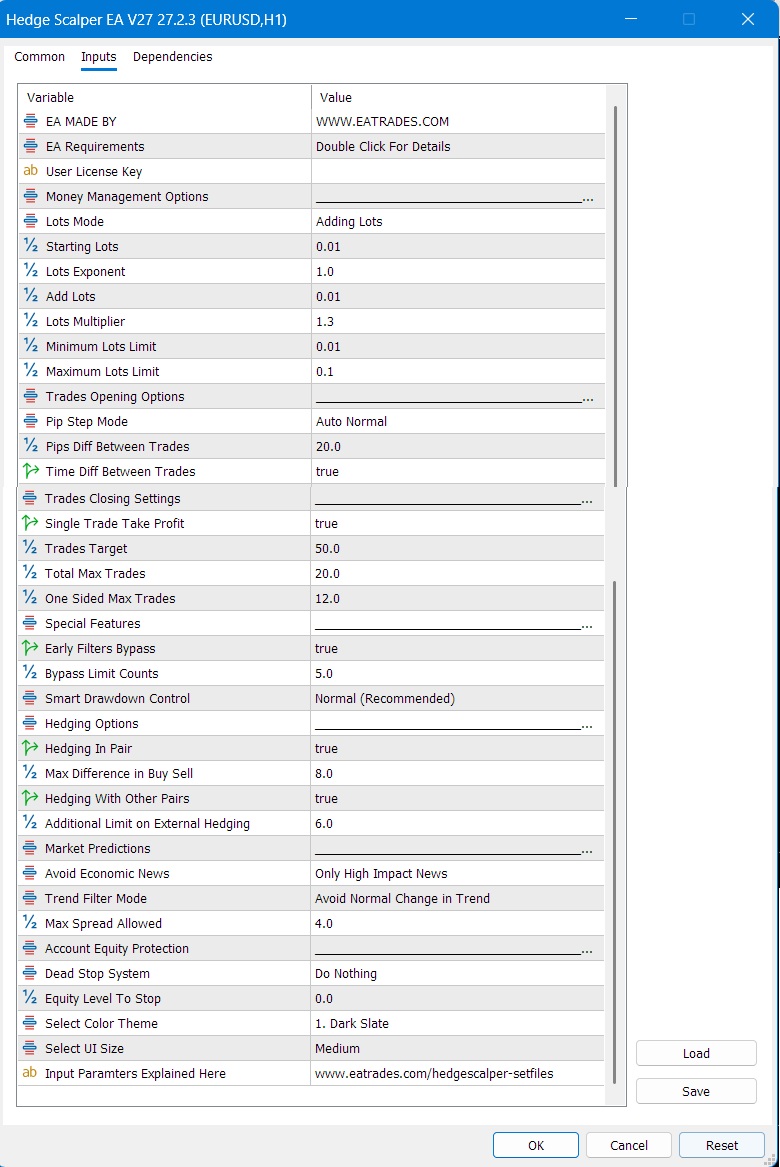
These inputs identify the EA and authorize it to run.
First Two Parameters (Information Only)
Informational · Read onlyThe first two parameters are strictly for reading and informational purposes; they do not affect your trading at all.
User License Key
RequiredEvery user has their own unique license key which must be entered to run the EA. The EA will not work if you input an invalid or missing license key.
Money Management: Lots Mode and Lot Size Limits
These settings determine how large each order can be.
Lot Size / Lot Mode
Choose the strategy type for order volumes from the drop-down menu:
- Fixed Lots: Trades the exact starting lot every time (e.g., 0.01, 0.02, or 0.05).
- Auto / Auto Lot Size System: EA decides lot size according to account balance (account balance divided by 1,000 multiplied by starting lots). For example, with 0.01 starting lots, a $5,000 balance trades 0.05 lots, and a $10,000 balance trades 0.10 lots. With 0.02 starting lots, a $1,000 balance trades 0.02 and $2,000 trades 0.04.
- Adding Lots: Uses starting lots for the first order, scaling up based on the lot exponent and add lots settings.
- Multiplying Lots: Multiplies previous lot sizes using a multiplier exponent.
Lots Exponent & Add Lots
Lots Exponent: Determines after how many orders the lot size changes when using adding or multiplying lot systems (does not work with fixed or auto lots). For example, with starting lots of 0.01 and exponent of 3, the first 3 orders trade 0.02, the next 3 trade 0.04, and orders 7–9 trade 0.06 in an adding structure. If exponent is 1 with starting lot 0.01, it increases by 0.01 every order (0.01, 0.02, 0.03…).
Add Lots: The increment added to lot sizes under the adding lot system.
Lots Multiplier
High risk · Use cautionMultiplies lot size sequentially (e.g., starting at 0.01 multiplied by 1.3, then 1.3 again). The walkthrough notes this is a risky method that can add heavy lots and lead to low margin or margin calls, advising not to use a multiplier higher than 1.3 (and warning that a Martingale multiplier of 2 is extremely risky).
Minimum and Maximum Lot Size Limits
Applies across all lot modes (fixed, auto, adding, multiplying).
- Minimum Lot Limit: The lowest floor limit (e.g., 0.01 or 0.05). The EA will not trade below this limit, complying with broker minimums.
- Maximum Lot Limit: The upper ceiling limit (e.g., 0.30). No matter what calculations or multipliers are made, the EA will not exceed this maximum threshold.
Trade Opening Options: Grid Pip Step and Time Delay
These controls affect the spacing and timing of new grid orders.
Pip Step Options (Fixed, Auto Short, Auto Normal, Auto Long)
As a grid-based EA, pip step controls distance between orders:
- Fixed: Trades with a constant distance (e.g., 20 pips) for every pair every time. Recommended by the walkthrough.
- Auto Short: Automatically chooses distance based on pair movement (e.g., 15 pips on GBPUSD, widening to 20 or 22 pips if movement exceeds 30–50 pips within an hour).
- Auto Normal: Dynamic distance ranging between 18 and 26 pips.
- Auto Long: Starts from 25, 30, 35, or 40 pips distance, continuously adjusting per pair.
Time Difference Between Trades
Controls whether the EA waits after opening an order (e.g., waiting at least 40 minutes before opening another order). Configured as True (enabled) or False (disabled).
Trade Closing Settings: Take Profit and Order Limits
Choose how profitable trades close and how many orders may be active.
Single Trade Take Profit
When set to True, every individual trade in profit should be closed immediately without waiting longer.
Trade Target (Target System)
Defines profit targets for the EA’s target system. Smaller values (e.g., $10) hit quickly; larger values (e.g., $100) take time. The recommended setting is 5% of your account balance (e.g., $50 on a $1,000 account).
Total Max Orders & One-Sided Max Trades
- Total Max Orders: Maximum total orders allowed per trading pair (e.g., 20). If running EURUSD and GBPUSD, it allows 20 for EURUSD and 20 for GBPUSD independently.
- One-Sided Max Trades: Measures the net difference between Buy and Sell orders (e.g., 5 buys and 5 sells = 0 difference; 10 buys and 5 sells = 5 extra buys). If the difference exceeds the given value, the EA stops opening further trades on the overloaded side and focuses on the opposing side.
Early Bypass System and Bypass Limit Counts
Controls when selected filters are temporarily skipped.
Early Bypass System
When set to True, the EA bypasses and skips all filters (news trading, trend avoider, hedging, scalping) during favorable early conditions. When set to False, the EA uses every filter from startup.
Bypass Limit Counts
Defines the order threshold for bypassing filters (e.g., value of 5 means filters are bypassed when orders are less than 5, and followed once orders exceed 5).
Smart Drawdown Control System
Adjusts how cautiously the EA manages losing positions.
Controls how the EA handles losing orders across four modes:
| Mode | Behaviour & Trade-off |
|---|---|
| Very Strict | Closes losing orders very quickly without waiting long; makes lesser profit. |
| Strict | Stricter than normal, clearing losing trades faster. |
| Normal | Recommended. Balances holding losing orders slightly longer expecting a recovery while not waiting too long. |
| Relaxed | Holds losing orders even longer for potential recovery, yielding more profit if they return, but holding losses longer. |
Hedging Options: Same-Pair and Cross-Pair Hedging
These settings govern how the EA balances activity between Buy and Sell orders and across symbols.
Hedging in Pair & Max Buy/Sell Difference
Hedging between buy and sell orders on the same pair independently (e.g., EURUSD hedges only within EURUSD). The max difference between buy and sells stops trading on the max side while the lower side continues.
Hedging With Other Pairs & Additional External Limits
When True, pauses trading on the most losing currency pair while winning pairs continue, resuming the paused pair once it becomes profitable. Recommended external limits: set to 4 when using 6 pairs, or 3 when using 4 pairs.
Market Prediction: Avoid Economic News
Choose which levels of market activity should cause the EA to pause new trading.
Avoid Economic News Options
- Don’t Use This Option: Keeps trading without news worries.
- Only High Impact News: Avoids high impact news while trading low/medium impact.
- High and Medium Impact News / High, Medium and Low Impact News: Avoids all selected impact tiers.
How it works: The EA does not fetch data from external links or websites; it reads market behavior and volatility patterns with high accuracy to detect news events, pausing trading for 5–10 minutes before auto-starting again.
Trend Filter Mode
Controls how strongly the EA avoids changing or rapidly moving market trends.
Trend Filter Options
- Don’t Use This Option: Does not avoid any trends.
- Avoid Every Small Trend: Pauses trading on every small market movement or trend change.
- Avoid Normal Change Trend / Only Bigger Change: Pauses trading only during rapid, major trend shifts and restarts when conditions normalize.
Maximum Spread
Sets the spread ceiling allowed for new trades.
Maximum Spread
Set as 4 by default since most brokers offer spreads under 4 pips. You can set it to 3 (very few brokers offer less than 2 pips), but 4 is recommended on average.
Account Equity Protection: Dead Stop
Defines an account-equity threshold and what the EA should do when it is reached.
Equity Level to Stop
Set by the set-file system to 0 by default so users can choose their own threshold. For example, on a $10,000 account risking $2,000 to protect $8,000 balance, set equity level to 8,000.
- Only stop opening new trades, keep running trades: Halts new orders while managing open positions.
- Stop new orders and close running orders: Exits immediately and closes all running orders.
Slippage Note: To protect $8,000 accurately, the walkthrough recommends setting the threshold slightly higher at 8,100 to account for broker slippage and closing times.
Information Panel: Theme and UI Size
These settings change the panel’s appearance, not the trading strategy.
Panel Theme & UI Size
Choose from approximately 12 color themes. Select UI Size can be set to Small, Medium, or Large depending on your display preferences (Medium is default). Note: Clean light layout preferences ensure high visibility.
Hedge Scalper EA V27: Frequently Asked Questions
Quick answers to common configuration questions.
Does this apply to V26 or older versions?
No, this video and walkthrough apply exclusively to Hedge Scalper EA version 27 (including 27.2.3 and all 27.x builds) and do not apply to versions 26, 25, 24, or older.
Where should I get my set file?
EA Trades recommends generating your set file for free directly from their website by entering your license key and account parameters.
What leverage is required?
The EA is built for leverage of 1:400, 1:500, or higher. Lower leverage like 1:300, 1:200, or 1:100 is not supported.
How does the news filter work without external links?
It evaluates live market behavior and volatility patterns directly on the chart rather than fetching external web data.
Useful EA Trades Resources
Official pages to help you configure, update and understand Hedge Scalper EA.
Configure Hedge Scalper EA V27 with care
Start with the correct V27 set file, verify your broker leverage, and test configuration changes thoroughly before live use.